Before You Begin
In order to complete this experiment, the computer or device you are using must have sound capability. You will not be able to respond to the audio stimulus and therefore, you will not be able to determine your aural response time.To adjust the computer volume to a comfortable level, double click on the speaker icon next to the time on the Windows task bar. This experiment works better if you use a set of headphones, However, if you are working with a computer with external speakers, be considerate of those around you when setting the volume level!
Before beginning this practical, make sure you have read Chapter 3, Analysis of Experimental Data, of the PLES manual.
The aim of this practical is to introduce you to the concepts of the normal distribution, the standard deviation, and the standard error in the mean. You also get the opportunity to test your reaction times.
A short time interval is required for a person to make a response to an observed stimulus. This time interval is known as the reaction time or response time, \(\tau\), of the individual concerned. It varies from person to person and may differ slightly depending on the nature of the stimulus concerned. In this experiment each student measures their own reaction time by measuring the time delay in their operating a switch after seeing a visual stimulus, or hearing a sound.
The Gaussian or Normal Distribution
A quantity like \(\tau\), that is subject to random errors and fluctuations, can be modelled by a normal or Gaussian distribution. The curve that represents the probability of an event occurring at a particular value has a maximum at the mean, \(\bar\tau\), and tapers off rapidly at values away from the mean. This type of curve is called a Gaussian curve.
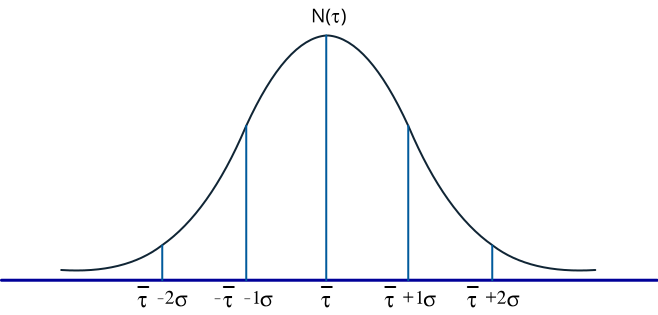
The characteristic scale of the variation around the mean value is given by the standard deviation or \(\sigma\). The equation for the standard deviation of N measurements of \(\tau\) is given by:
\( \sigma = \sqrt{\sum\limits_{i=1}^{n} ( \bar\tau - \tau_i)^2 \over N - 1}\)
Where \(\tau\) is the mean of the measured value.
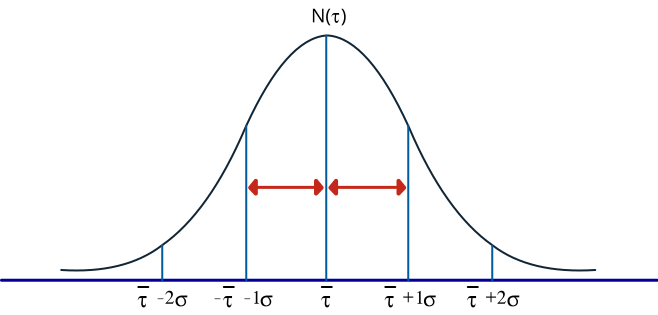
If you were to make a series of measurements of this quantity \(\tau\), your measurements would usually be centred around \(\bar\tau\) with a spread of values represented by \(\sigma\). If you were to plot enough of your measurements in a histogram they would begin to resemble the Gaussian curve. This sort of distribution of values is called a Gaussian or normal distribution.
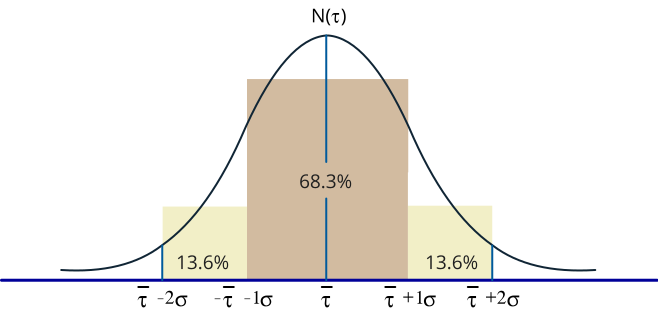
An important property of the normal distribution is that 68.3% of the observations (area under the curve) lie within one \(\sigma\) of the mean and 95.5% of the observations lie within \(2\sigma\) of the mean.
This property can often be used to determine if an observed distribution is approximately normal or not.
Instructions
On the data acquisition page, a button under the graphs will act as a trigger. Click on the bar and there will be a random delay of between 1 and 3 seconds before either a sound will play or the light will flash. As soon as you see or hear the stimulus click on the bar again. Your reaction time will be shown in milliseconds and a point will be plotted on one of two histograms. Premature responses are indicated as faults and no value will be recorded.
During the experiment you will be able to plot means and standard deviations (\(\sigma\)) using the buttons under the data table. Values of \(\sigma\), standard error of the mean \(\Delta \tau\), and % of observations within 1 and 2\(\sigma\) ranges of data, will be given when relevant data are plotted.
It is a good idea to check your averages and standard deviations often as the histograms develop. You can also alter the bin size for the two different reaction time histograms during the experiment to see how it changes the shape of the histogram. So, if all your observations are in one bin, you can separate them into smaller bins.
If you have outlying data, because of distraction or inattention, you can exclude the data from the histogram and statistical calculations by choosing a lower value of \(\tau\) for the maximum bin. To alter these values, highlight them with the mouse and type in a new number or use the select buttons, the histogram will automatically update.
Instructions cont
When you are finished use the next button to go to the data screen. On the data screen you will find all the binned histogram data.
The data on the data screen can be highlighted and copied into a spreadsheet program like Excel for analysis, and for producing plots. If you have trouble copying the data using the computer, or if you prefer not to use a spreadsheet to produce plots you can do the analysis by hand. You should include a copy of the histogram data (print out or hand-written) in your write-up.
At anytime before you quit or reset the program, you may go back to the data acquisition page to make more measurements or alter the histogram parameters. The data page will be automatically updated to reflect your last settings.
Receiving Credit
To receive credit for doing this on-line practical:
- Plot the two histograms using a program such as Excel, or on graph paper by hand.
- On the plots, indicate the means and standard deviations for each graph.
- Sketch out a Gaussian curve for your response times.
- Finally answer or comment on the questions on the last page of this experiment.
Reminder: Press the reaction button to trigger a sound or visual change and press the button again when you see or hear the stimulus. Your reaction time will be tracked and plotted on the corresponding graph.
Use the stats table below to track the summarised results as they become available and use the 'toggle' buttons to visualise the mean, standard deviation, and gaussian curve on each graph. The graphs provided are not a replacement for the practical activity.
When you're ready to move on, you can find your data and some discussion questions on the next two pages.
# of Bins: Max(ms)
# of Bins: Max(ms)
| Stats | Visual | Audio |
|---|---|---|
| \(N\) | -- | -- |
| \(\bar\tau (ms)\) | -- | -- |
| \(\sigma (ms)\) | -- | -- |
| \(\Delta \bar\tau (ms)\) | -- | -- |
| \(1\sigma (\%)\) | -- | -- |
| \(2\sigma (\%)\) | -- | -- |
Your reaction time:
Histogram Data
To Retrieve Data, highlight data in the output text fields and copy to clipboard. The data is spaced with tabs and can be pasted into applications like Excel for analysis.
Visual Stimulus Data
Audio Stimulus Data
Questions for Discussion
- Compare your histograms for audio and visual stimuli. Can you show that there is a significant difference? Do you know of any biological reason that would lead you to expect one reaction time to be shorter than the other?
- Comparing your measurements with the Gaussian model, would you say that they are consistent with a normal distribution? What might lead to discrepancies?
- It is often claimed that drugs such as alcohol and caffeine have significant effects on reaction time and concentration. How would you design an experiment using this practical to test these claims?